TrackNTrace
Introduction
Track N Trace is a mail tracking platform used to monitor mailings and individual mailpieces using USPS scan data.
Users can search for specific mailpieces to review available tracking activity, delivery estimates, and scan history, or use reporting tools such as the Scan Export to retrieve detailed scan data for one or more mailings. This information can be used to research mailpiece status, review mailing performance, and troubleshoot delivery or tracking questions.
Purpose
- Provide step-by-step instructions for tracking individual mailpieces in TrackNTrace.
- Explain how to access and generate the Scan Export Report.
- Help users locate mailpiece scan information and understand the information returned by TrackNTrace.
Who Should Use This Guide
- Track N Trace Users: Individuals with access to Track N Trace who need to locate individual mailpieces, review tracking and scan information, or generate Scan Export reports for their mailings.
Tracking a Mailpiece
The Track Mailpiece screen allows users to locate individual mailpieces within a mailing and review available USPS tracking and scan information. This can be used to research the status of a mailpiece, determine when and where it was scanned, and review estimated delivery information.
Step-By-Step
Go to Track and Trace - Home Page
Click on Track Mailpiece
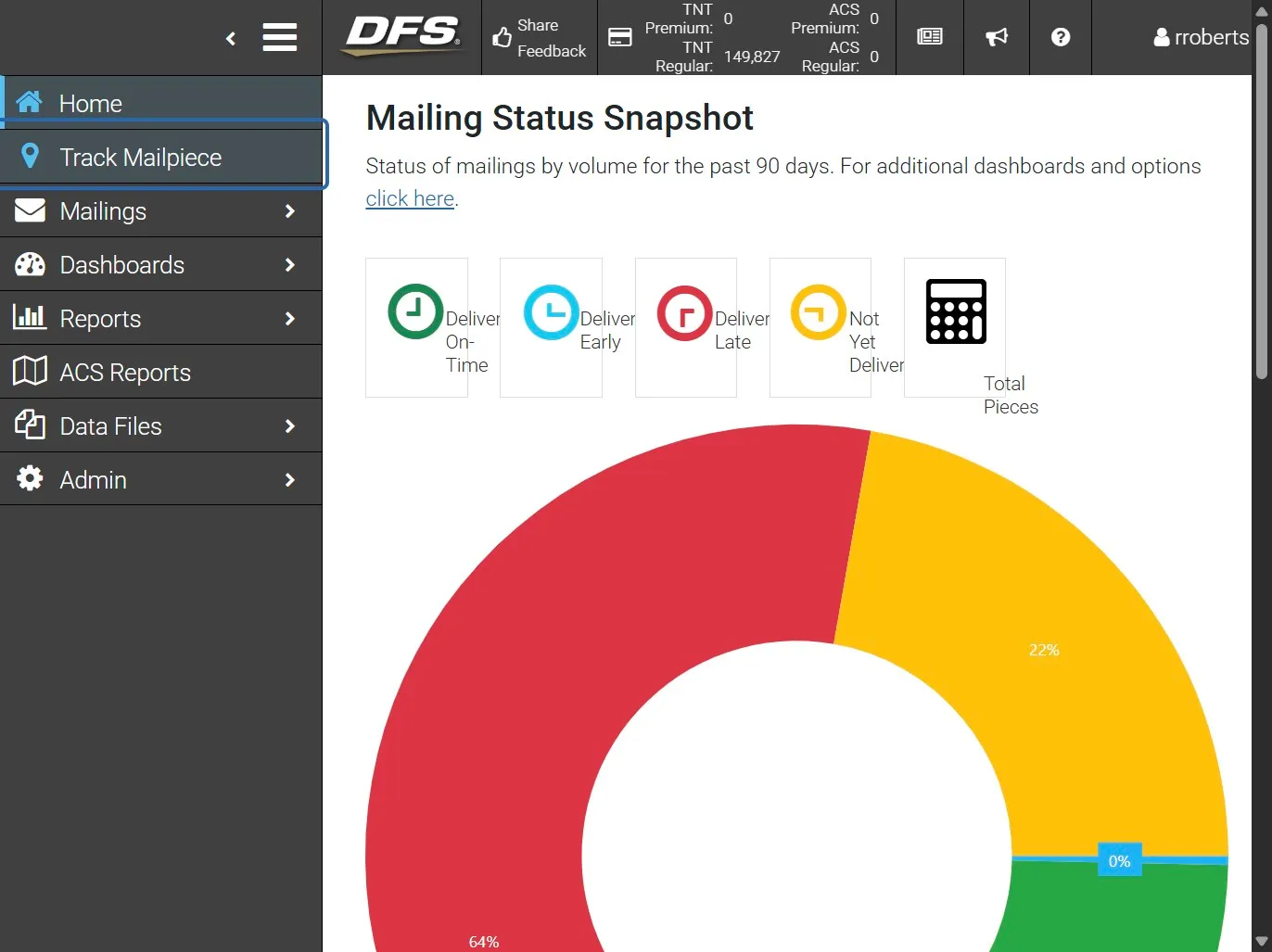
Select the Mail Group where appropriate
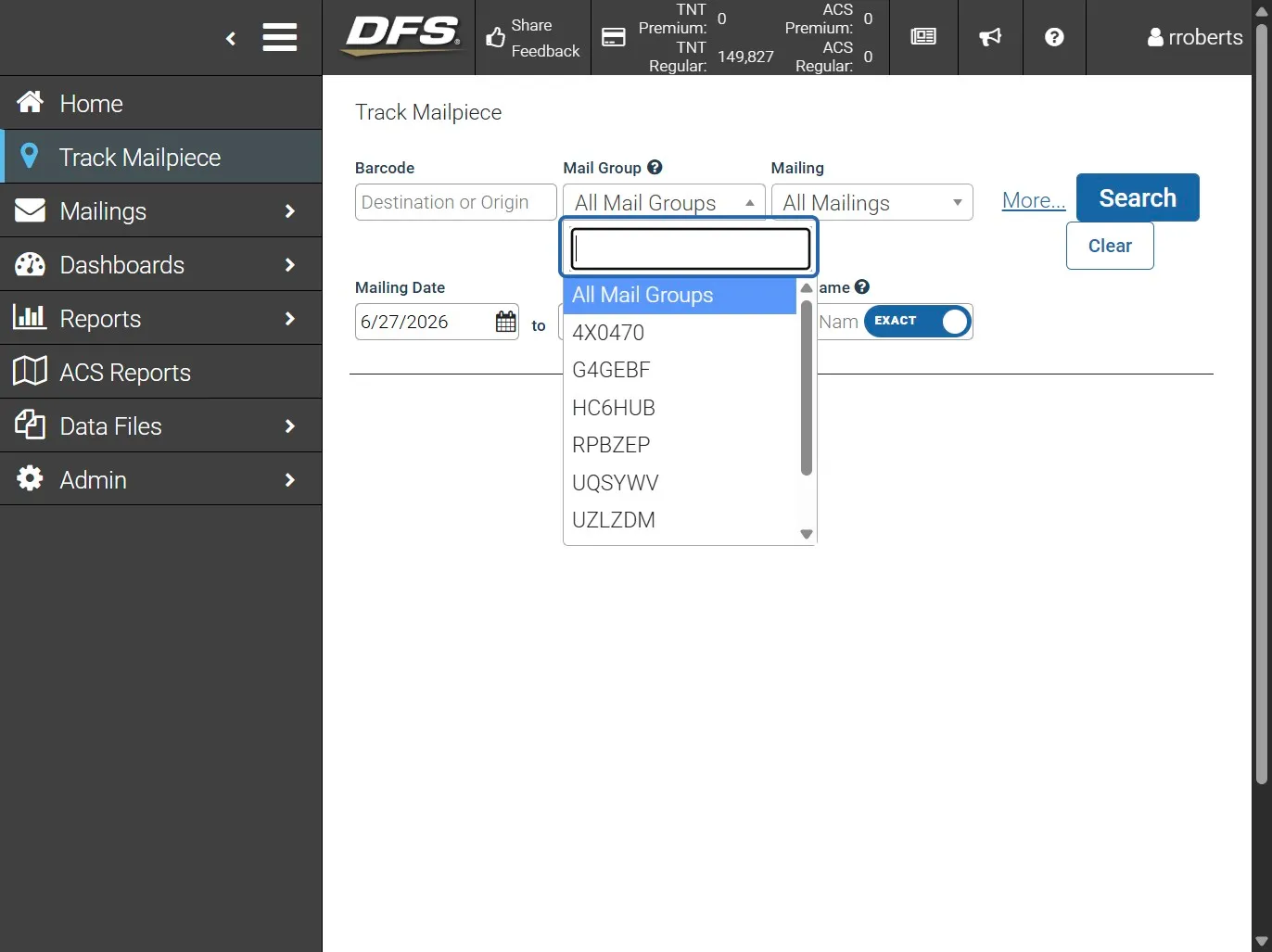
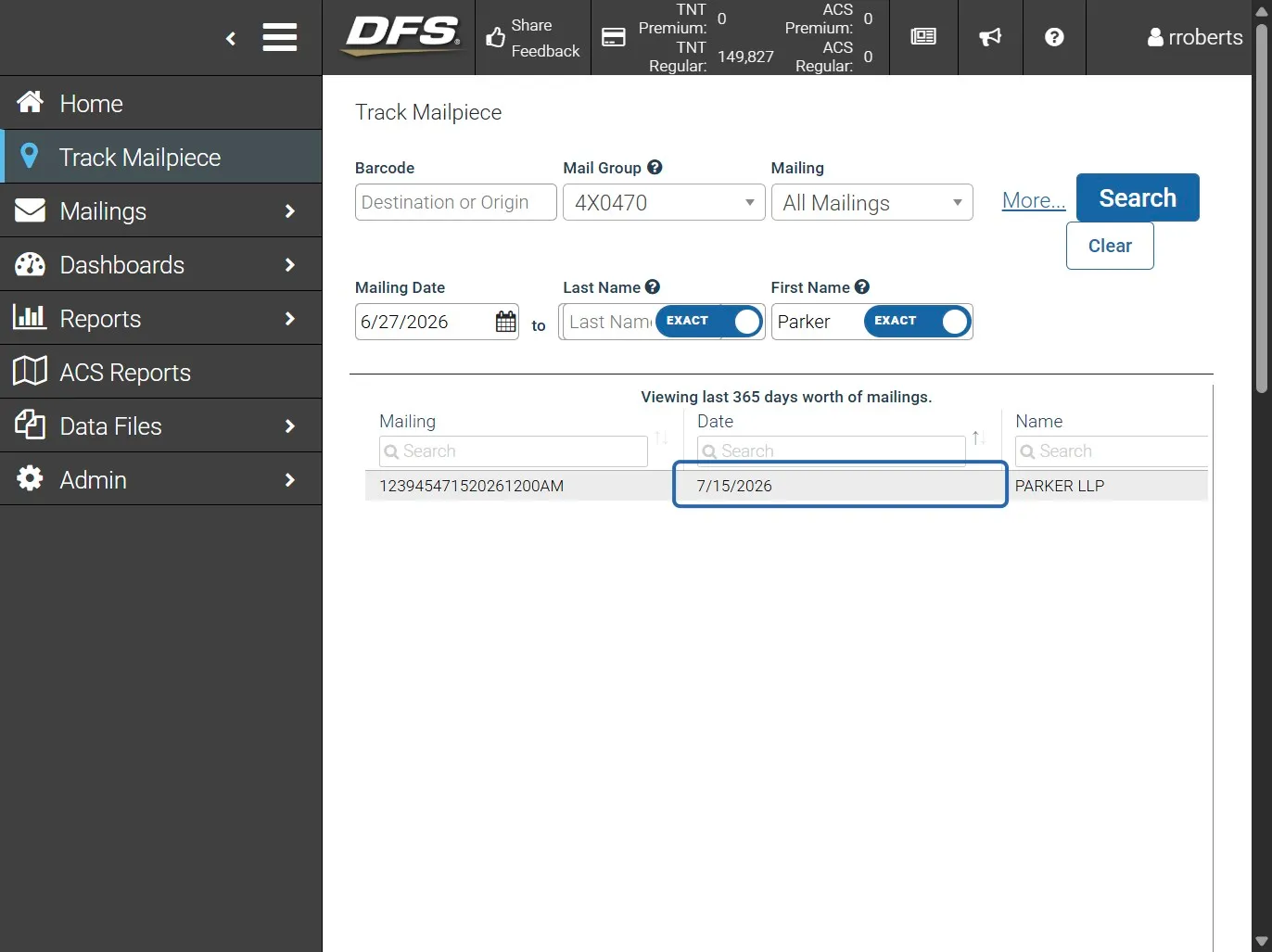
Enter the search parameters for the mailpiece you wish to track.
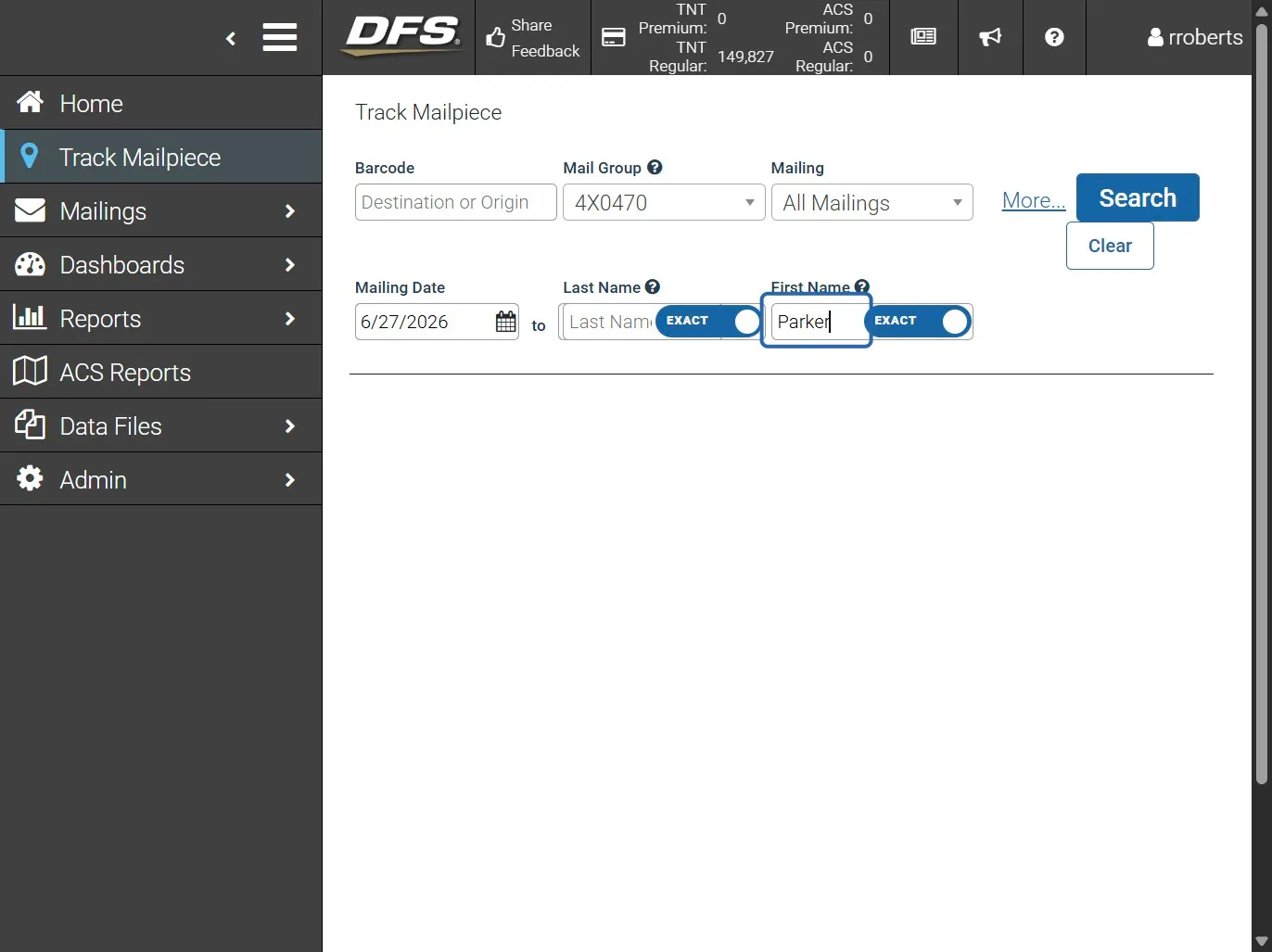
Click on Search
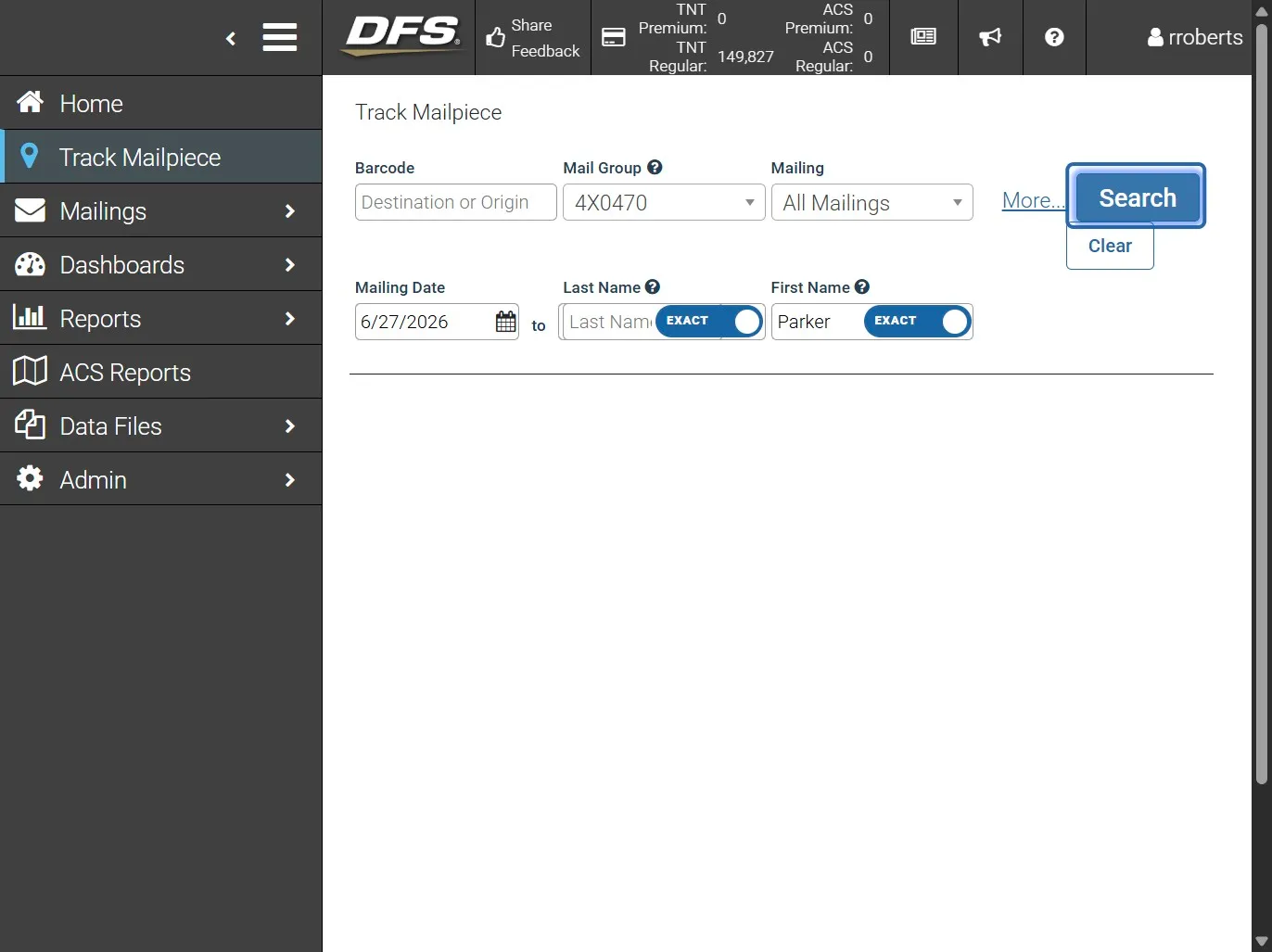
Select the mailpiece you were targeting.
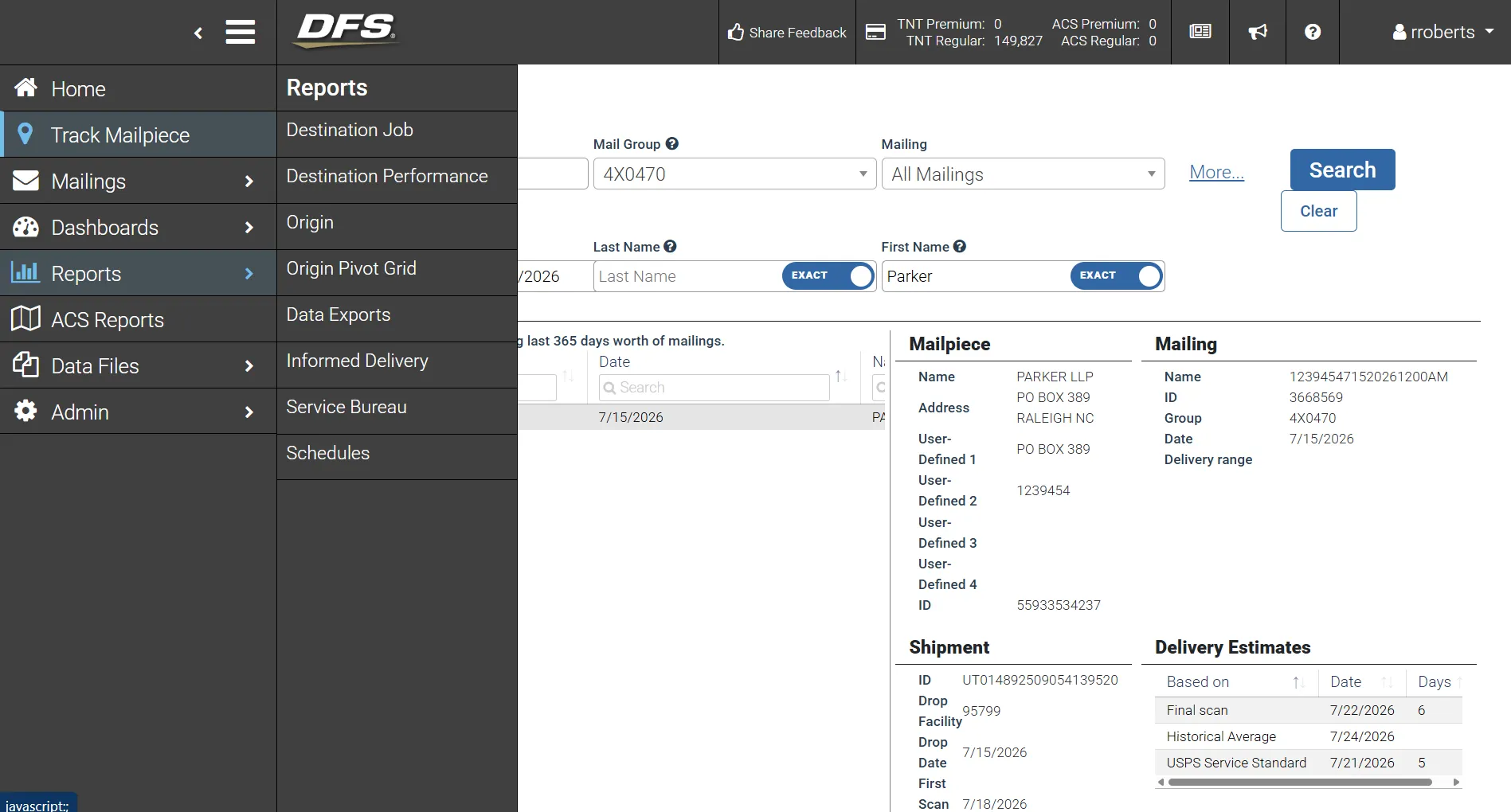
Details about the selected mailpiece appear in the right pane
Search Parameters
Navigate to Track Mailpiece from the left navigation menu. Use one or more of the available search fields to narrow the results, then select Search.
The standard search fields include:
- Barcode: Search using the Destination or Origin barcode associated with the mailpiece.
- Mail Group: Limit results to a specific Mail Group.
- Mailing: Limit results to a specific mailing.
- Mailing Date: Enter a date range to limit the mailings included in the search.
- Last Name: Search for a mailpiece using the recipient's last name.
- First Name: Search for a mailpiece using the recipient's first name.
The EXACT option next to the First Name and Last Name fields determines whether the entered value must exactly match the name associated with the mailpiece.
Select Clear to remove the current search criteria and begin a new search.
Additional Search Options
Select More... to display additional fields that can be added to the search screen.
Available search fields include:
- Barcode
- Mailing
- Mailing Date
- Address
- Zip Code
- Last Name
- First Name
- User-Defined 1
- User-Defined 2
- User-Defined 3
- User-Defined 4
- Service Type
- Delivery Status
- Expected Return Date
- Expected Return Value
- Visible in Track N Trace
Select the desired fields and then select Done. The selected fields will be available as additional search criteria on the Track Mailpiece screen.
Search Results
After selecting Search, matching mailpieces display in the results section. Select a mailpiece from the results to view the information associated with that piece.
The information available may include:
Mailpiece
- Recipient name
- Address
- User-Defined fields
- Mailpiece ID
Mailing
- Mailing name
- Mailing ID
- Mail Group
- Mailing date
- Delivery range
Shipment
- Shipment ID
- Drop facility
- Drop date
- First scan date
- Piece count
Delivery Estimates
Track N Trace may provide delivery estimates based on available information, including:
- Final Scan
- Historical Average
- USPS Service Standard
Delivery estimates are dependent on the tracking information available for the mailpiece and may not represent an actual delivery confirmation.
Destination and Scan Information
The Destination section displays information for the selected mailpiece, including its barcode and ZIP Code.
When USPS scan information is available, the Scans section provides the scan history for the mailpiece. Scan details may include:
- Date
- Facility
- City
- Operation
- Clock Stopped
Troubleshooting
If the expected mailpiece is not returned, first verify the Mailing Date range. The search only returns mailpieces that meet the criteria currently entered on the screen.
If too many results are returned, narrow the search by using a Mail Group, Mailing, recipient information, barcode, or another available search field.
If searching by recipient name does not return the expected result, verify the spelling and review whether EXACT is enabled. An exact search requires the value entered to match the information associated with the mailpiece.
If the mailpiece is displayed but the Scans section shows No data available in table, Track N Trace does not currently have scan information to display for that mailpiece. The presence of a mailpiece in Track N Trace does not guarantee that USPS scan data will be available.
A No First Scan or No Final Scan result indicates that the corresponding scan is not available in Track N Trace. Other information, such as the USPS Service Standard or Historical Average, may still be displayed and should not be interpreted as confirmation that the individual mailpiece was delivered.
Reporting
Scan Export Report
The Scan Export report provides detailed tracking and USPS scan information for mailpieces within one or more selected mailings. The report can be used to research mailpiece activity, review scan history, identify the last available scan, and export scan-level data for additional analysis or troubleshooting.
Unlike the Track Mailpiece screen, which is useful for researching individual mailpieces, the Scan Export report allows users to retrieve scan information for multiple mailpieces within selected mailings.
Accessing the Scan Export Report
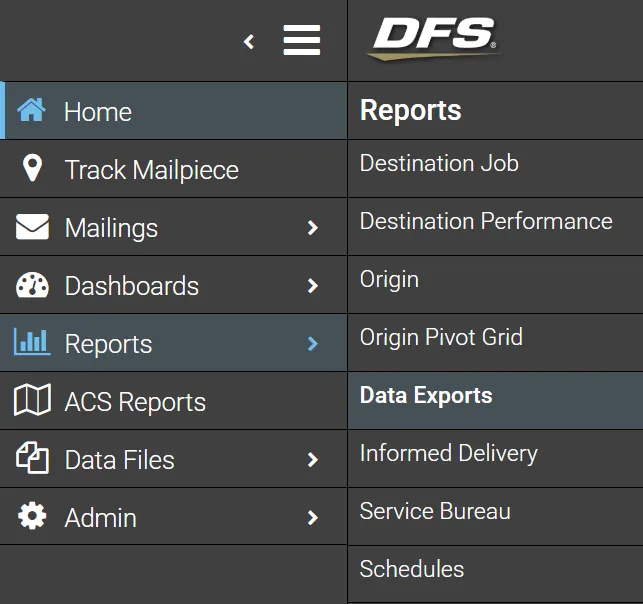
- From the left navigation menu, select Reports.
- Select Data Exports.
- From the Report dropdown, select Scan Export.
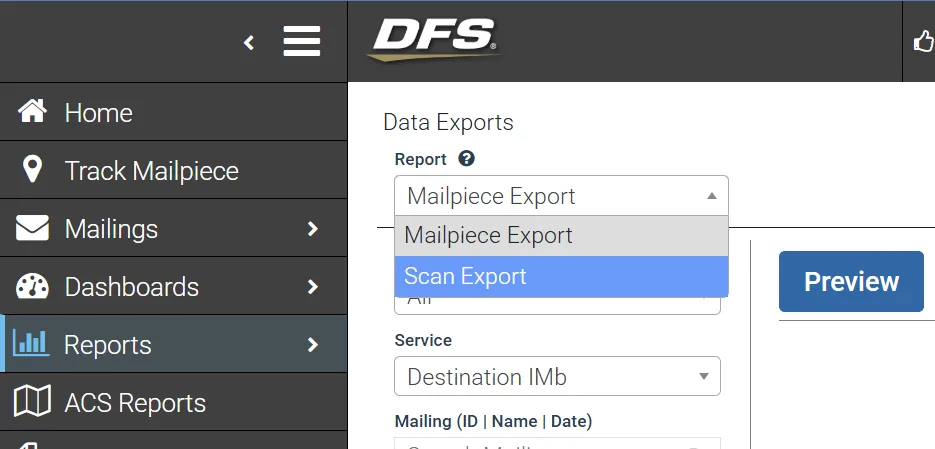
The Data Exports screen displays the available filters used to identify the mailings and mailpieces to include in the report.
Filtering the Report
Use the available filters to narrow the data included in the Scan Export.
Available filters include:
- Company: Limits results to the selected company.
- Service: Selects the mail tracking service. For mailpiece destination tracking, select Destination IMb.
- Mailing (ID | Name | Date): Search for and select one or more mailings. Mailings can be located using the search field above the list.
- Mail Group: Limits results to a selected Mail Group.
- States: Limits results based on state.
One or multiple mailings can be selected. When researching a specific job, searching by Mailing ID can quickly narrow the mailing list.
Previewing Scan Data
After selecting the appropriate mailing(s) and filters, select Preview.
The preview displays the available records matching the selected criteria and is useful for verifying that the correct mailing and data have been selected before requesting an export.
The preview displays a maximum of 300 rows. If the selected criteria return more than 300 records, only the first 300 rows will be displayed on the screen. The exported report is not limited to the records displayed in the preview.
The Scan Export contains detailed mailing, mailpiece, delivery, and scan information. Available information includes fields such as:
- Mailing ID
- Mailing Name
- Mailing Group
- Shipment ID
- Drop Facility
- Drop Date
- Entry Scan Date
- Barcode
- Routing ZIP
- Last Scan Date
- Last Scan Facility
- Estimated Delivery Date
- Days in System
- Delivery Address
- Full Name
- First Name
- Last Name
- User-Defined fields
- Scan Facility
- Scan Operation Code
- Scan Date
- Scan Time
- Scan Operation Description
- Final Scan indicator
Use the horizontal scroll bar at the bottom of the preview to review additional columns that are not immediately visible on the screen.
Understanding Scan Records
A mailpiece may appear on multiple rows in the Scan Export. Each row can represent a separate scan event associated with that mailpiece.
The Scan Operation Code, Scan Date, Scan Time, and Scan Operation Description provide information about individual scan activity. For example, the Scan Operation Description may identify processing activity or a logical delivery event.
Because the report contains scan-level data, the number of rows in the report should not be interpreted as the number of unique mailpieces.
Exporting the Report
After confirming the appropriate data, select the Download/Export icon located in the upper-right corner of the report area to request the export.
Scan Export files can contain a significant amount of data and may take a long time to generate. The report does not need to remain open while the export is being processed.
An email notification is sent when the requested report has finished generating and is available for download.
Downloading a Completed Export
The completed report is not downloaded directly from the Scan Export screen.
After receiving the email notification either follow the link in the email or:
- Return to Track N Trace.
- From the left navigation menu, select Data Files.
- Select Download Mail Files.
- Locate the completed Scan Export file and download it.
Troubleshooting
If the expected mailing does not appear, use the Mailing (ID | Name | Date) search field to search for the specific Mailing ID or other known mailing information. Also verify that other selected filters are not excluding the mailing.
If the preview returns unexpected results, verify the selected Company, Service, Mailing, Mail Group, and other filters before requesting the export.
If multiple mailings are selected, the resulting report can contain records from each selected mailing. Narrow the selection to a single mailing when researching a specific job or mailpiece.
If the preview contains what appear to be duplicate mailpieces, review the scan-related columns. A single mailpiece can have multiple scan events and therefore appear on multiple rows.
If the export does not appear immediately after it is requested, allow time for processing. Scan Export files can take a significant amount of time to generate. Wait for the email confirming that the report is available before attempting to retrieve the completed file from Data Files > Download Mail Files.
Revision History
Revision Date | Updater Name | Description |
|---|---|---|
August 19, 2026 | Nikkita Parker | Initial document creation |